AI Influencer Video
AI Influencer Video Generation Guide Complete Step-by-Step Tutorial
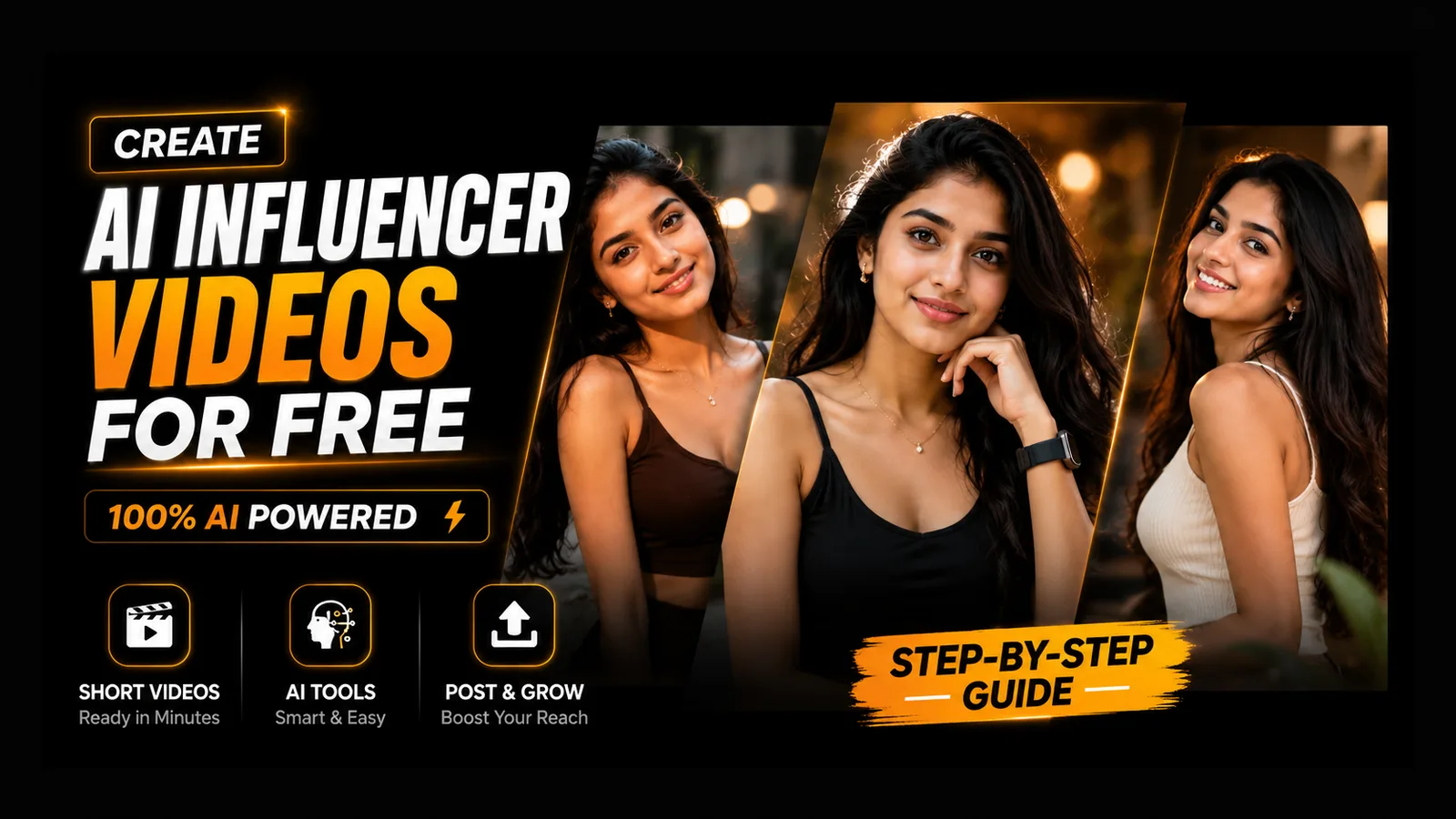
Before creating videos, you need a consistent AI influencer.
Use your image-generation prompt to create a 24-year-old Indian-looking female influencer with an attractive appearance and realistic features.
Tip: Keep using the same AI influencer for all your videos to build a recognizable personal brand.
Create an ultra-realistic 24-year-old Indian female influencer with a naturally attractive appearance and a fit, healthy physique. She has warm medium-brown skin, expressive dark brown eyes, long silky black hair, a symmetrical face, soft natural makeup, and a confident, friendly smile.

She looks like a premium lifestyle and fashion creator with an authentic social media presence. Her outfit is modern, trendy, and stylish—minimalist streetwear or chic casual fashion in neutral colors. She wears subtle accessories such as small earrings, a delicate necklace, and a smartwatch.

Pose her naturally as if she's creating content for Instagram or YouTube. The expression should feel genuine and approachable, not overly posed. Capture realistic skin texture, natural facial details, and lifelike lighting.

Background: clean luxury apartment, modern café, aesthetic studio, or softly blurred urban environment with shallow depth of field.

Style: hyper-realistic photography, DSLR quality, 85mm portrait lens, cinematic lighting, soft natural shadows, high dynamic range, extremely detailed skin, realistic hair strands, ultra-sharp focus, premium influencer aesthetic, Instagram-worthy, 8K resolution, photorealistic, no CGI or cartoon look.

Negative Prompt:
low quality, blurry, cartoon, anime, CGI, plastic skin, overprocessed face, unrealistic proportions, extra fingers, deformed hands, crossed eyes, duplicate limbs, watermark, logo, text, noise, oversaturated colors, distorted face, bad anatomy, low resolution.
Step 2: Choose a Reference Video
Find a short reference video (under 30 seconds) from Instagram or Pinterest.
- Pick a video where a girl or influencer is talking, dancing, walking, or posing.
- Download the video to your device.
Step 3: Extract the First Frame
Go to Frame Extractor
- Upload your downloaded reference video.
- Extract all frames.
- Download the first frame from the video.
This frame will be used as the style reference.
Step 4: Generate a Matching Image in ChatGPT
Upload these two images to ChatGPT:
- The first frame extracted from the reference video.
- Your AI influencer image.
Then use image-editing prompt to generate a new image.
Replace only the face of Character 1 with Character 2 while keeping Character 2's identity, facial features, skin tone, and hairstyle exactly the same. Preserve the exact pose, body, outfit, camera angle, composition, and lighting from Image 1. Use the background from Image 2 and blend everything naturally for a seamless, ultra-realistic result. Keep the output in a 9:16 aspect ratio with DSLR-quality, photorealistic details and no face distortion or identity mixing.
Step 5: Open Weavy AI
Go to Weavy AI and sign up.
Every new account receives 150 free credits.
You can sign up using your Figma account.
Free Credit StrategyEach new Wavy AI account includes 150 free credits.
By creating multiple accounts (using separate logins where permitted by the service), you can generate many videos without paying initially.
For example:
- 10 accounts × 150 free credits
- Enough to create around 30 days of AI influencer content.
Follow the exact timing, body movement rhythm, hand placement changes, pose transitions, and camera movement from the motion reference video. Preserve natural human movement and realistic physics. Match the reference motion trajectory frame-by-frame while maintaining the appearance of the subject from the input image
- Video → Video URL
- Image → Image URL
- Prompt → Prompt Input
- Click Run Model
- Wait for processing to complete
- Download the generated video